 +1987 123456
 info@domain.com
 Rock Street, San Francisco

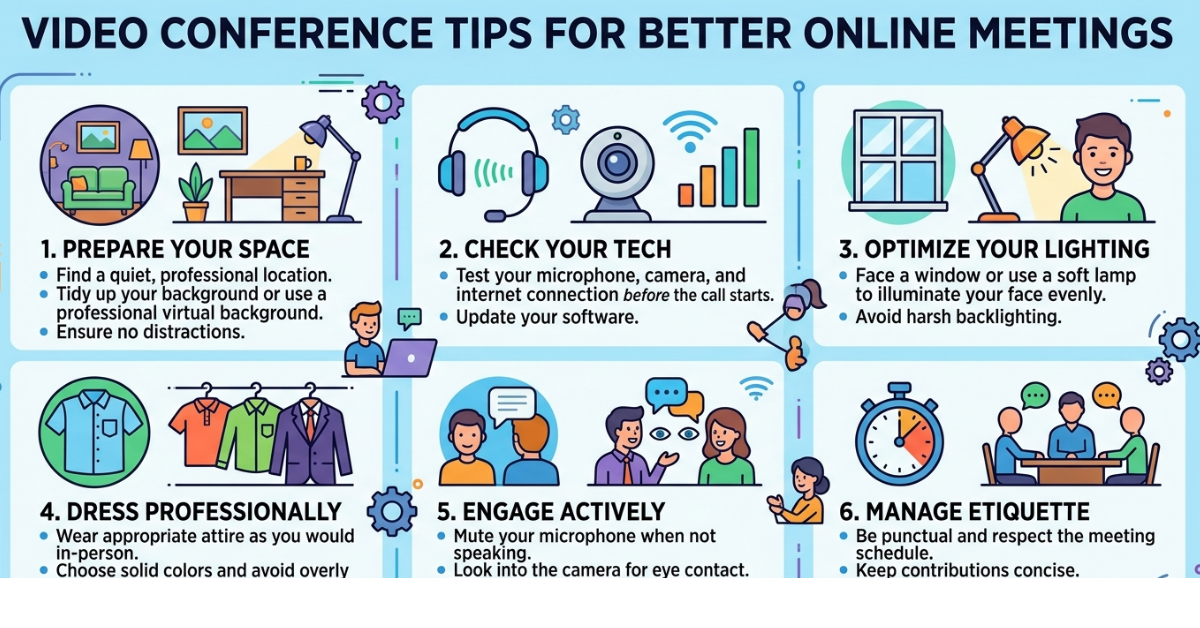
Video meetings have become a normal part of work, education, and even social life. Whether you’re collaborating with coworkers, meeting clients, or attending an online class, knowing the right video conference tips can make a huge difference in how professional and productive you appear.
A poorly lit camera, background noise, or unstable internet can easily disrupt a meeting. On the other hand, a well-prepared setup helps you communicate clearly and leave a positive impression. In this guide, you’ll discover practical video conference tips that improve audio quality, video appearance, and overall meeting etiquette so your virtual meetings run smoothly every time.
Why Video Conferencing Skills Matter
Video conferencing tools like Zoom, Microsoft Teams, Google Meet, and Skype have transformed how people communicate. But technology alone doesn’t guarantee a good meeting experience.
Effective virtual meetings depend on:
-
Clear communication
-
Good technical setup
-
Proper meeting etiquette
-
Strong presentation skills
Learning a few simple techniques can dramatically improve your online meeting experience and help you appear more confident and professional.
Essential Video Conference Tips for Professional Meetings
1. Test Your Technology Before the Meeting
One of the most important video conference tips is testing your setup ahead of time.
Check the following:
-
Microphone functionality
-
Camera quality
-
Internet connection
-
Software updates
-
Meeting links and passwords
Joining a meeting five minutes early allows time to fix technical issues without delaying the discussion.
2. Choose a Quiet Environment
Background noise can quickly distract everyone in a meeting. Find a quiet location where interruptions are unlikely.
Helpful strategies include:
-
Closing windows and doors
-
Silencing phone notifications
-
Informing others nearby about the meeting
-
Using headphones with a built-in microphone
Clear audio is often more important than video quality.
3. Use Proper Lighting
Lighting dramatically affects how you appear on camera.
For the best results:
-
Face a window or light source
-
Avoid bright lights behind you
-
Use a desk lamp if natural light is limited
Good lighting helps others see your facial expressions, making communication feel more natural.
4. Maintain Eye Contact with the Camera
Many people look at the screen rather than the camera during meetings.
While that feels natural, looking into the webcam occasionally creates the impression of eye contact. This makes conversations feel more personal and engaging.
A simple trick: place the meeting window close to your webcam.
5. Keep Your Background Clean and Professional
A cluttered background can be distracting.
Ideal backgrounds include:
-
A plain wall
-
A tidy workspace
-
A subtle virtual background
If your environment isn’t suitable, most platforms allow you to blur your background.
6. Position Your Camera at Eye Level
Camera placement affects how professional you appear.
For the best angle:
-
Keep the camera at eye level
-
Sit about two feet from the screen
-
Frame your head and shoulders
Avoid placing the camera too low, which creates an unflattering angle.
7. Dress as You Would for an In-Person Meeting
Even if you’re working from home, appearance still matters.
Choose:
-
Solid colors instead of busy patterns
-
Professional or business-casual clothing
-
Minimal distractions
Dressing professionally also helps you mentally shift into work mode.
8. Mute Your Microphone When Not Speaking
This is one of the simplest but most overlooked video conference tips.
Muting prevents:
-
Keyboard typing noise
-
Background conversations
-
Echo or feedback
Unmute only when you need to speak.
9. Speak Clearly and Pause When Necessary
Internet connections sometimes create slight delays.
To avoid talking over others:
-
Speak clearly
-
Pause briefly after someone finishes
-
Use visual cues such as raising your hand
This keeps conversations organized and easier to follow.
10. Avoid Multitasking During Meetings
It may be tempting to check emails or browse the web during a meeting, but people often notice when someone is distracted.
Stay engaged by:
-
Taking notes
-
Responding when appropriate
-
Maintaining eye contact
Active participation improves collaboration.
11. Use Headphones for Better Audio
Headphones help reduce echo and improve sound clarity.
Benefits include:
-
Clearer communication
-
Less background noise
-
Better concentration
Many professionals prefer noise-canceling headphones for video calls.
12. Use Chat Features When Appropriate
Most video conferencing platforms include a chat function.
You can use it to:
-
Share links
-
Ask quick questions
-
Provide resources without interrupting
Just remember not to spam the chat with unnecessary messages.
13. Share Screens Effectively
Screen sharing is a powerful collaboration tool.
Before sharing your screen:
-
Close unrelated tabs
-
Turn off notifications
-
Prepare documents in advance
This keeps presentations smooth and professional.
14. Pay Attention to Body Language
Nonverbal communication still matters during video calls.
Good practices include:
-
Sitting upright
-
Nodding while listening
-
Avoiding constant movement
Positive body language shows engagement and professionalism.
15. Follow Up After the Meeting
Great meetings don’t end when the call finishes.
A quick follow-up email can include:
-
Meeting summary
-
Action items
-
Shared documents
This improves accountability and ensures everyone stays aligned.
Common Video Conference Mistakes to Avoid
Even experienced professionals make small mistakes during online meetings.
Avoid these common issues:
-
Joining late
-
Poor internet connection
-
Talking while muted
-
Forgetting to mute background noise
-
Distracting virtual backgrounds
Fixing these small details can dramatically improve your virtual meeting experience.
Tools That Improve Video Conferencing
Here are popular tools used for virtual meetings:
-
Zoom – Excellent for webinars and large meetings
-
Microsoft Teams – Ideal for workplace collaboration
-
Google Meet – Easy browser-based meetings
-
Slack Huddles – Quick team conversations
FAQs
What are the most important video conference tips?
The most important tips include testing your technology, using good lighting, muting when not speaking, maintaining eye contact with the camera, and choosing a quiet environment.
How can I look more professional during video calls?
You can appear more professional by dressing appropriately, keeping your background clean, positioning the camera at eye level, and ensuring proper lighting.
What is the best lighting for video conferences?
Natural light in front of your face works best. If that’s not available, use a soft desk lamp placed behind your camera.
Why is my video conference audio echoing?
Echo usually happens when speakers and microphones are too close. Using headphones or muting unused microphones can solve this problem.
How do I make online meetings more engaging?
Encourage participation, use visual presentations, maintain eye contact with the camera, and keep discussions organized.
Conclusion
Virtual meetings are now a permanent part of modern communication, which makes mastering video conference tips more important than ever. With the right setup, proper etiquette, and a few simple technical adjustments, you can make every online meeting more professional, productive, and engaging.
Start by improving your lighting, audio quality, and camera positioning. Then focus on communication habits like staying attentive and speaking clearly. These small improvements will help you stand out in any video conference meeting.
If you want to continue improving your remote work skills, consider exploring related topics like remote collaboration tools, productivity tips, and home office setup guides.

Leave a Reply